


































Is it possible to disable automatic Windows updates? How to do it?

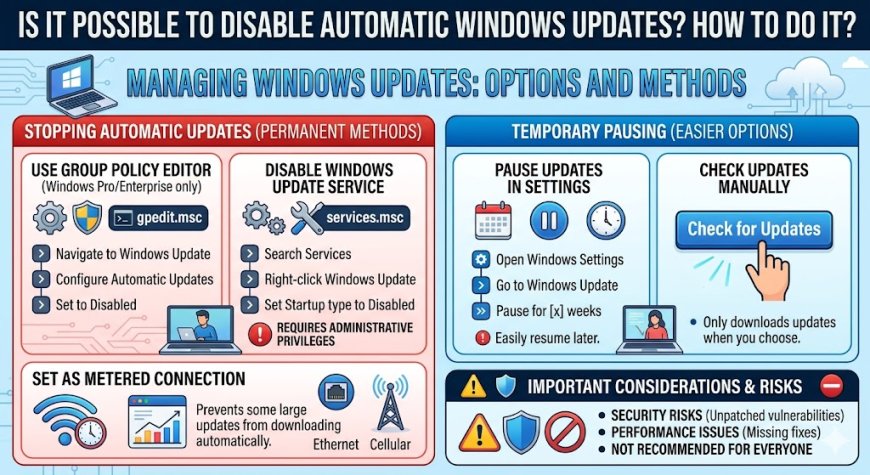
Imagine you are using your Windows device, and the next time you open it, you see that some previous features are no longer available and new ones have been added. Well, this is because Windows rolls out new updates every few months to enhance the performance and security of its devices. However, as much as these updates assist people, there are certain situations in which a user might not want to disturb the functioning of their device.
Windows has a feature that automatically updates your device as soon as new updates are rolled out, but if you want to stop these updates, then you can use this guide to learn about the same. So, if you want to know how to disable Windows update, then get ready to know everything about it.
Disabling Windows Update on Windows 10 and 11
Windows has multiple methods that people can use to disable an update. Here, we will mention a few, so that you can use any one of them when you want to learn the same.
-
Disable the Windows update service
The easiest method that you can use when you want to know how to stop Windows updates is by disabling the Windows update service. Use the instructions that we are giving here for the same.
-
Click the Windows and R keys on your keyboard and enter ‘services.msc’ when prompted to access the Services window.
-
Now, you need to move down in the list and look for the ‘Windows update’ service.
-
Right-click on the option to open ‘Properties’ from where you need to alter the ‘Startup type’ to Disabled.
-
Lastly, you need to press the ‘Apply’ tab to finalize all the changes.
By disabling this Windows Update service, you can ensure that Windows does not automatically install new updates. However, you should know that this method only disables the service temporarily.
-
Change the Group Policy Editor Settings
If you want to disable Windows Updates using the Group Policy Editor, it’s pretty straightforward. Here’s what you do:
-
Hit the Windows key + R, type “gpedit.msc,” and press Enter.
-
Once the Group Policy Editor opens, go to “Computer Configuration,” then “Administrative Templates,” then “Windows Components,” and finally “Windows Update.”
-
Find and double-click “Configure Automatic Updates.”
-
In the window that pops up, pick “Disabled.” Hit “Apply,” then “OK,” and you’re all set; automatic updates are now off.
The Group Policy Editor gives you a lot more control. You’re not just shutting updates off; you can actually tweak the settings however you like. If you want smarter control over your Windows updates, this is the way to go.
These are the two different methods that you can use when you want to know how can I cancel Windows updates. There are a few other methods that you can also use, such as using the Windows registry, but that method is quite complex and technical, which is why it is not usually recommended to use it. Now, we hope that you have properly understood the steps to disable Windows updates on your device.
What's Your Reaction?